Meet the Study Window: Read Two Pages at Once
Reading docs is rarely a single-page job. You read about RAG, and halfway through you want the definition of a context window open beside it. You start a tutorial, and you want the tool it describes running next to the steps. The web’s usual answer is a second browser tab and a lot of alt-tabbing, which means you keep losing your place.
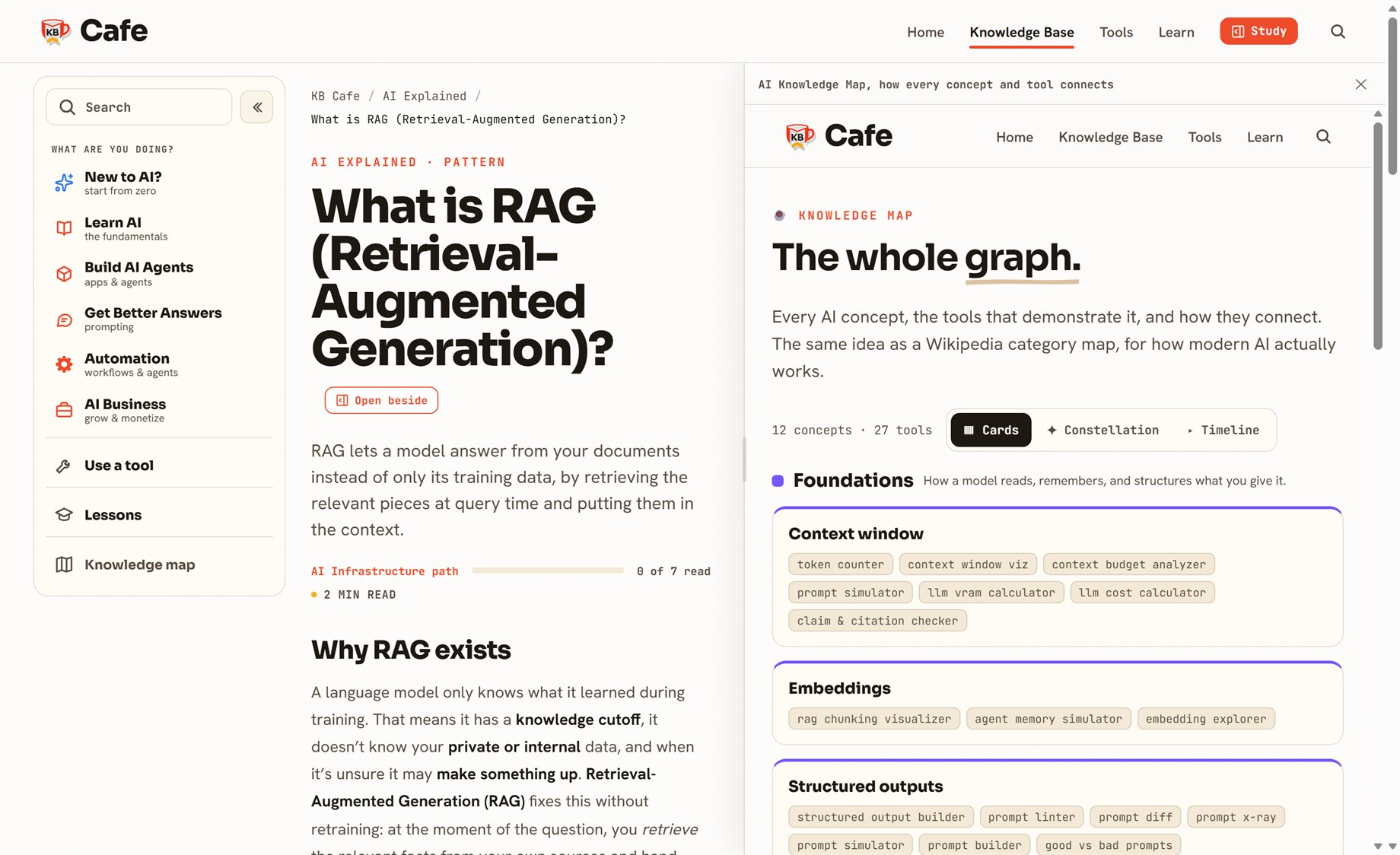
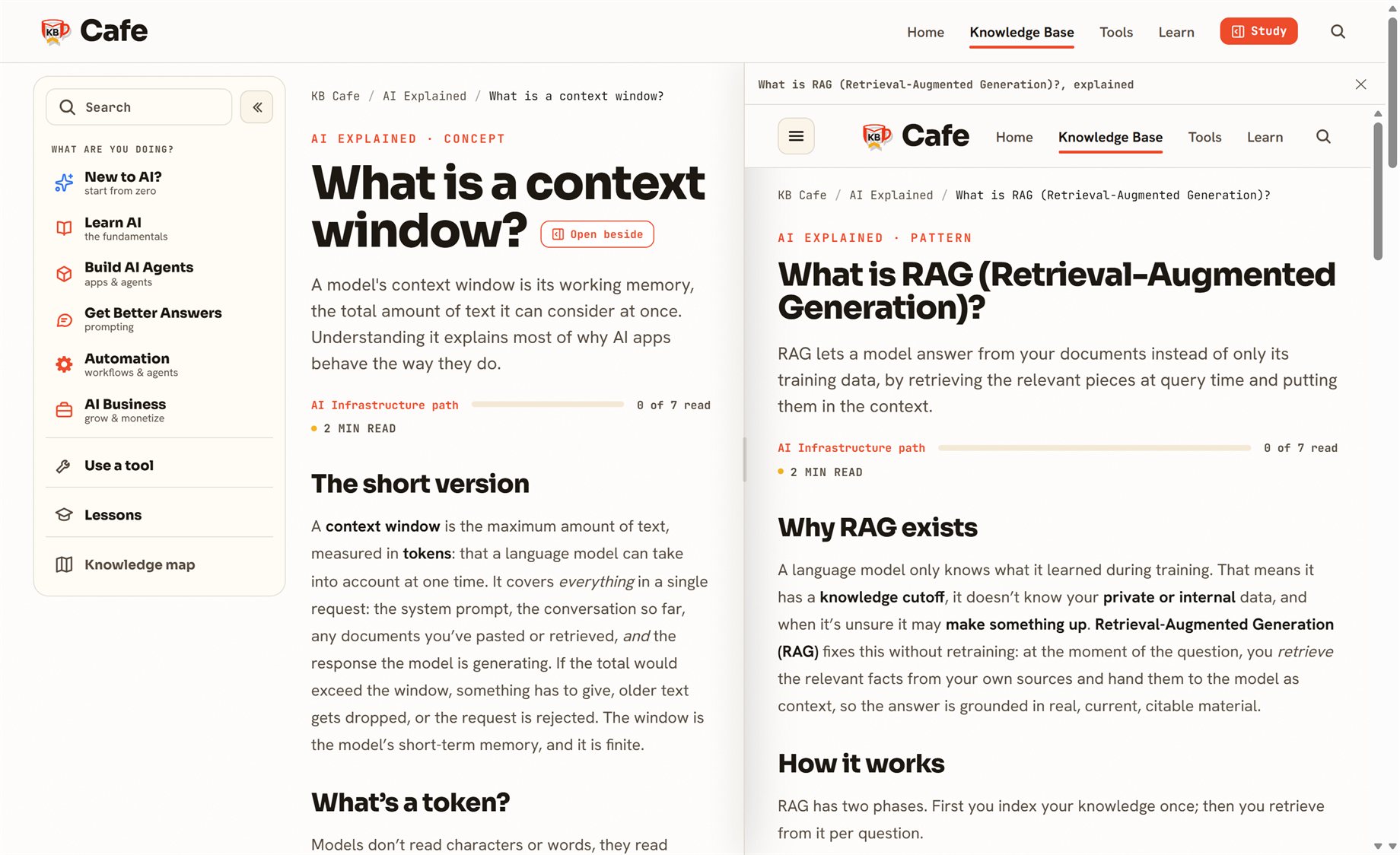
So we built a better answer into the site. Meet the Study Window: a real, resizable second viewport that docks on the right edge of the page, so you can read or use two KB Cafe pages at the same time without leaving the one you are on.
Where it came from
The feature started life as a smaller idea. Our knowledge map is a great way to jump into a concept, but clicking a star used to send you to the full guide and the map vanished. You had to hit Back to get it again. That felt backwards: the map is exactly the thing you want to keep around while you read.
So we made the map stay. Open a guide from the map and the map rides along, docked on the right. Once that existed, the obvious question was: why only the map? The right side of a wide screen is mostly empty space. Anything on the site could live there. The map rail grew up into a general Study Window.
Three ways to open it
There is no menu to dig through. Three entry points cover the natural moments you would want a second page:
- The Study button in the top nav. Always there, beside search. One click opens the current page in the window; click again to close. This is the “split what I’m looking at” button.
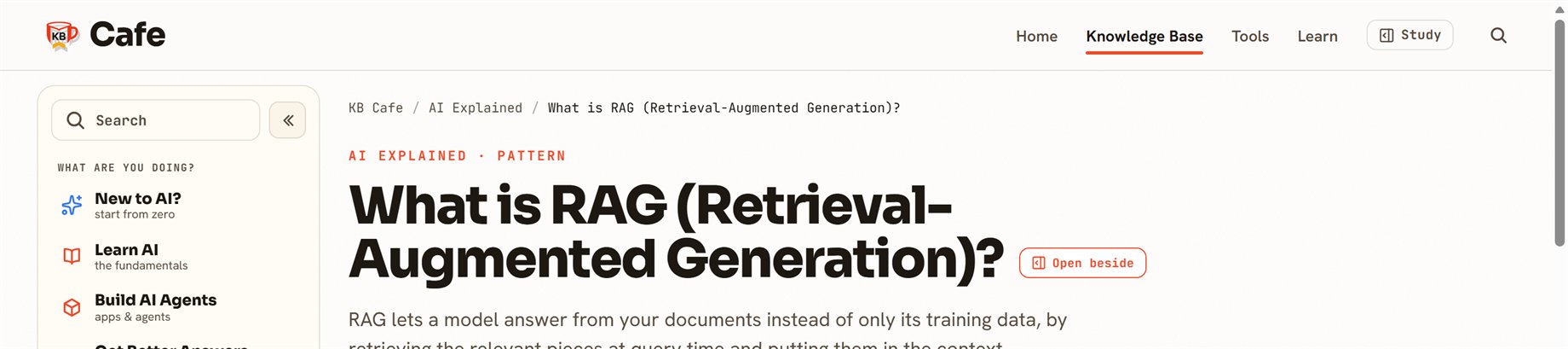
- “Open beside” next to a page title. On any guide or tool, a small button sits right by the heading. It pins that page into the window so you can wander off on the left while it stays put.
- Hovering an in-content link. The real superpower, below.
Send any link into the window
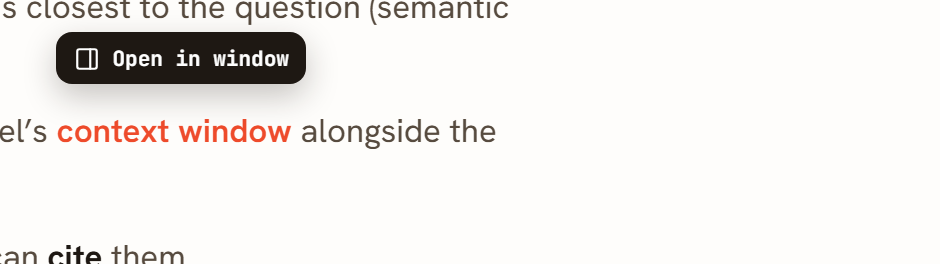
This is the one that changes how studying feels. Hover any link inside an article and a small Open in window chip appears. Click it, and that linked page loads into the Study Window while you stay exactly where you are. No tab switch, no scroll position lost.
When study mode really pays off
A second window is only useful for the right jobs. The one we reach for most was hiding in plain sight:
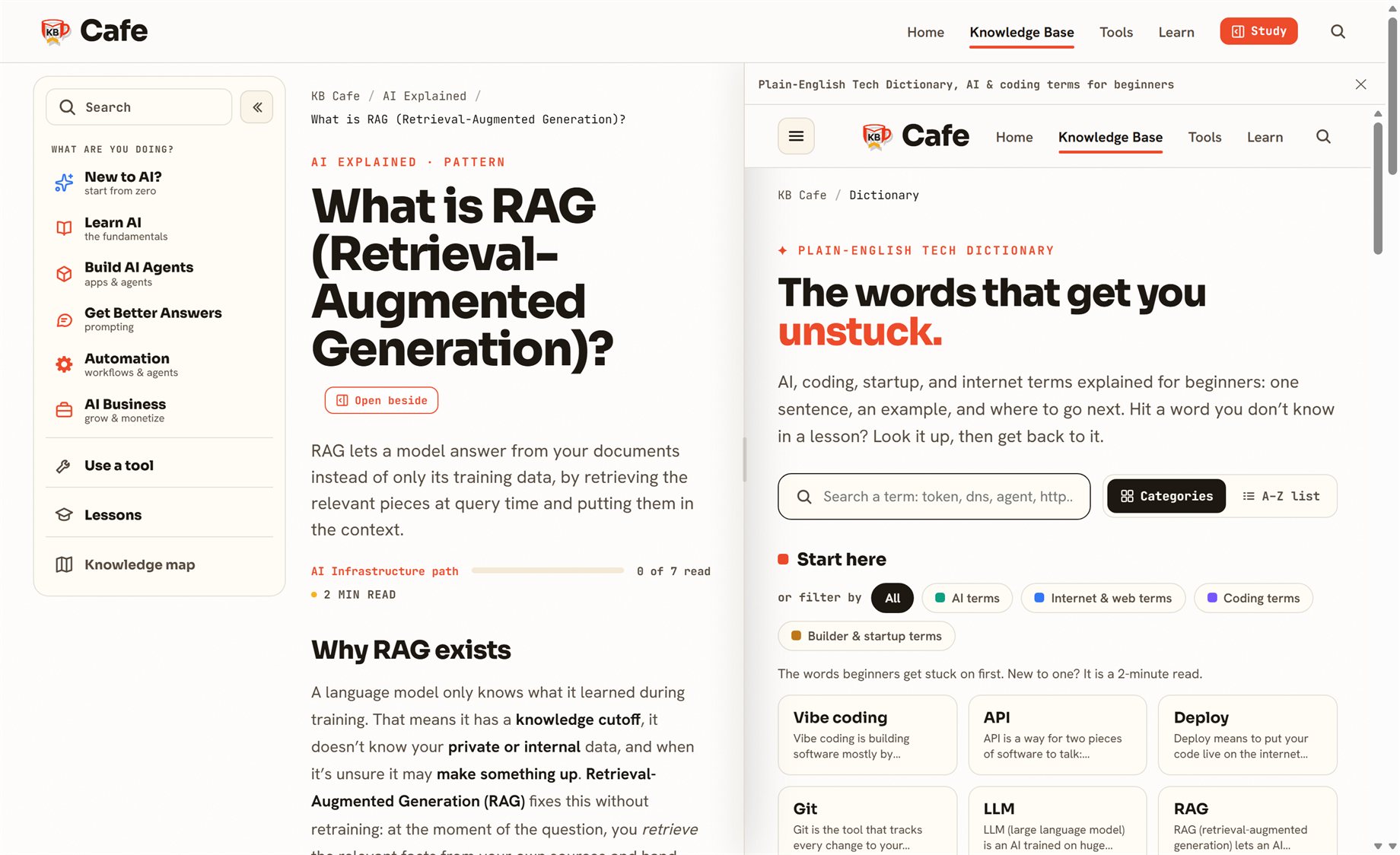
- Keep the dictionary open while you learn. This is the big one. Park the dictionary on the right, and the moment a term trips you up, look it up on the spot and hop to the next one, all without losing the sentence you were reading. Comprehension stops stalling on jargon, and your learning speeds up dramatically. It turns every guide on the site into a two-panel study session: read on the left, look up and explore on the right.
- Keep the map open while you read. The original use case. Explore concepts on the knowledge map on the right while the current guide stays on the left.
- Compare two ideas side by side. Read context windows and RAG together and the relationship clicks faster than reading them one after the other.
- Follow the explainer while you use the tool. Keep a tool’s write-up open beside the tool itself, so the “why” sits next to the “do.”
- Hold a reference open during an exercise. Pin a cheat sheet or definition on the right and work through the steps on the left without flipping back and forth.
The details that make it feel right
- It is a real window, not a preview. The Study Window is the actual page, with its own navigation. You can browse inside it independently of the main page.
- Drag to resize. Grab the divider and size the two panes to your screen. Useful on smaller laptops where one fixed width would cut content off. Your chosen width is remembered for next time.
- It tells you what it is showing. The little bar at the top of the window updates to the page currently inside it, so it never reads as a mystery panel.
- Close it any time. One button returns the page to full width.
- Desktop only, on purpose. Splitting a phone screen in half helps no one, so on small screens links just open normally. The window is a big-screen luxury.
Built clean, on purpose
One thing we cared about while building this: it had to be invisible to search engines and add zero weight to the pages people actually land on. So the whole Study Window is layered on with JavaScript and never touches the page a crawler sees. The canonical URL stays clean, the indexed article is byte-for-byte what it was before, and the second window simply does not exist until you ask for it. A nice feature should not cost you any SEO, and this one does not.
Want to try it? Open the knowledge map and click into any concept, or hit the Study button up top on any guide. Then drag the divider and make the screen yours.